
Contents
Overview
Subscription Manager (pkg_subsmgr) is a Joomla extension package for managing subscription keys across all your extensions. It provides centralised key generation, validation, expiration tracking, and usage monitoring for components, plugins, and modules.
All extensions are freely available to download as trials. Subscription keys unlock higher tiers with additional features, increased limits, and support access.
Subscription Manager is open source software released under the GNU General Public License v3 (GPL-3.0-or-later).
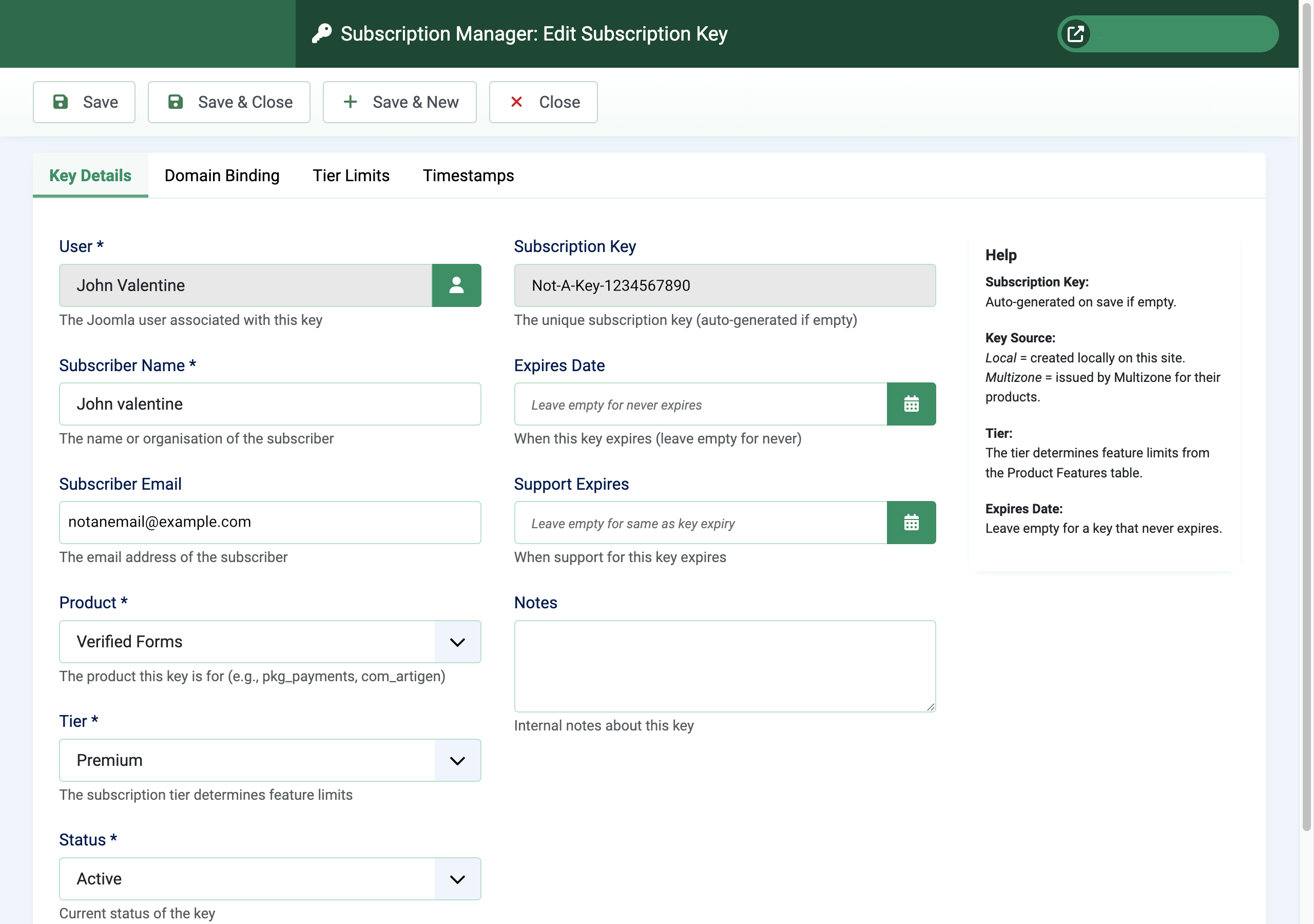
Subscription Keys
Generate, validate, and track subscription keys with RSA-2048 cryptographic signatures and domain binding.
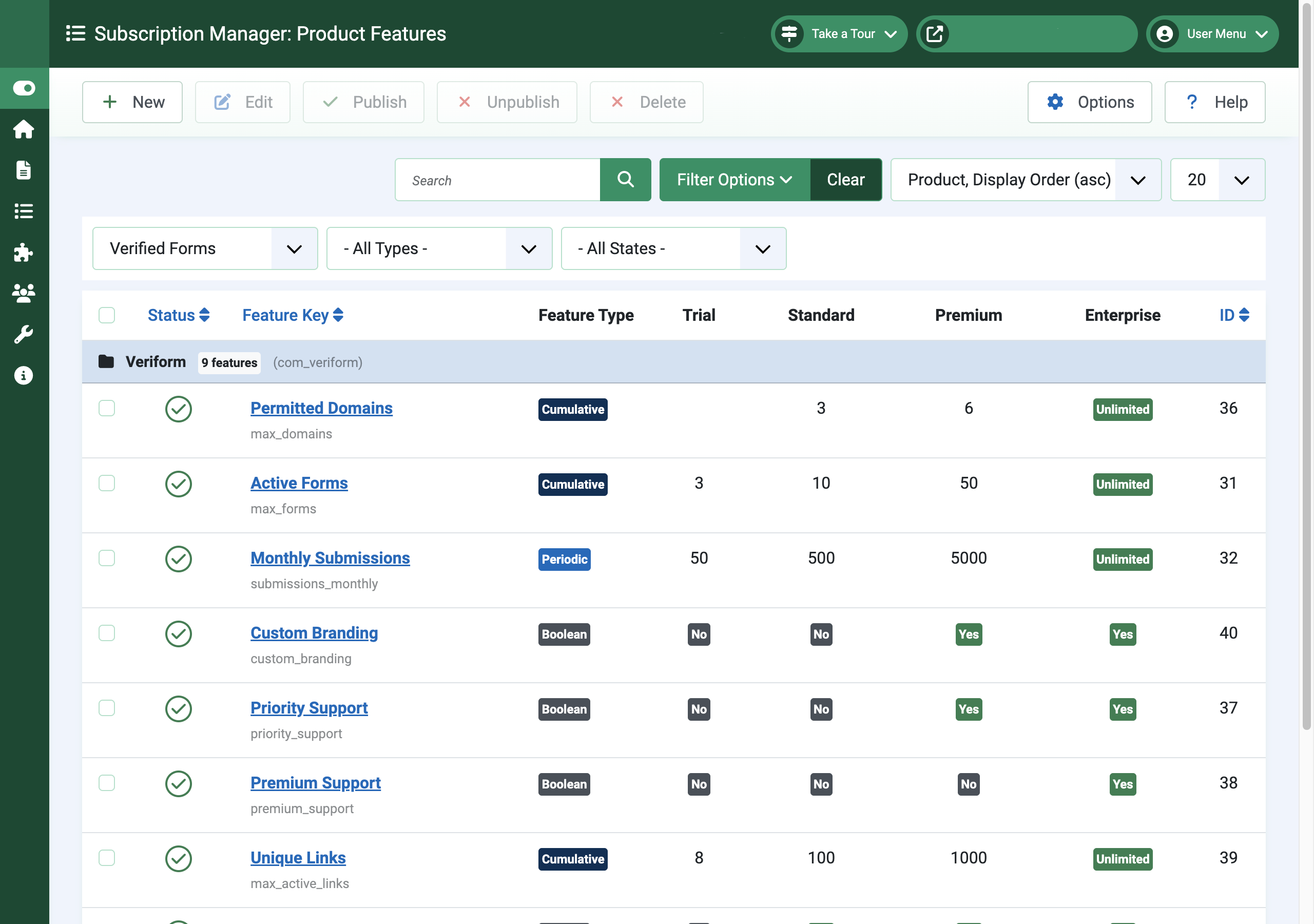
Tiered Subscriptions
Four subscription tiers (Trial, Standard, Premium, Enterprise) with configurable feature limits per tier.
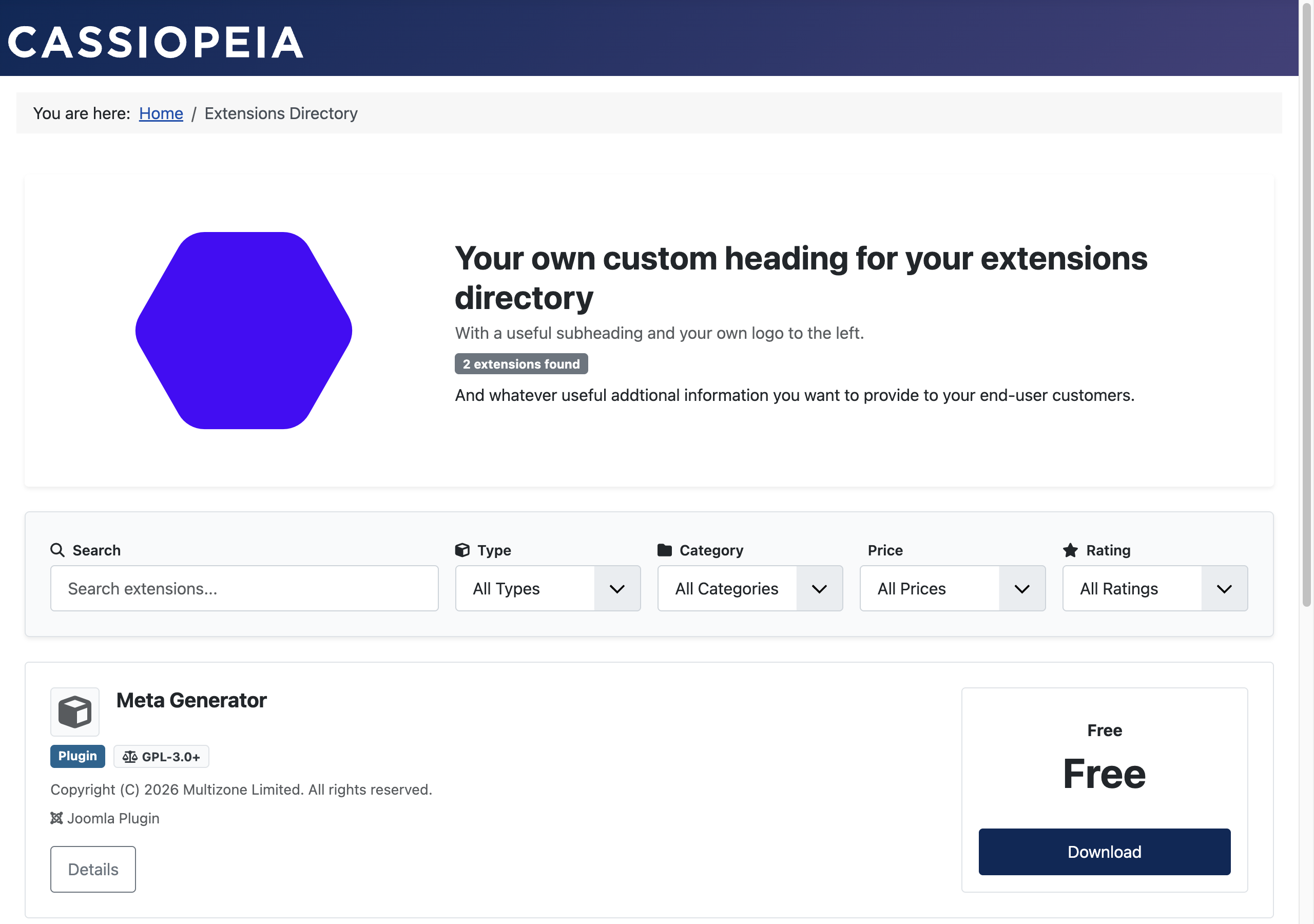
Extensions Directory
Built-in extensions directory with search, filtering, and integrated trial download flow for your users.
Installation
Step 1: Install the Package
- Download the latest
pkg_subsmgrpackage from the extensions directory or from Multizone Limited - Log into your Joomla Administrator
- Navigate to Extensions > Install > Install from File
- Upload the
pkg_subsmgr-x.x.x.zipfile and click Install
Step 2: Verify Installation
- Go to Extensions > Manage > Manage
- Search for "Subscription Manager"
- Ensure it shows as installed and enabled
Step 3: Initial Configuration
- Navigate to Components > Subscription Manager
- Click Options in the toolbar
- Configure your settings (subscription duration, email notifications, security)
- Click Save & Close
Getting Started
Configure Your Extensions
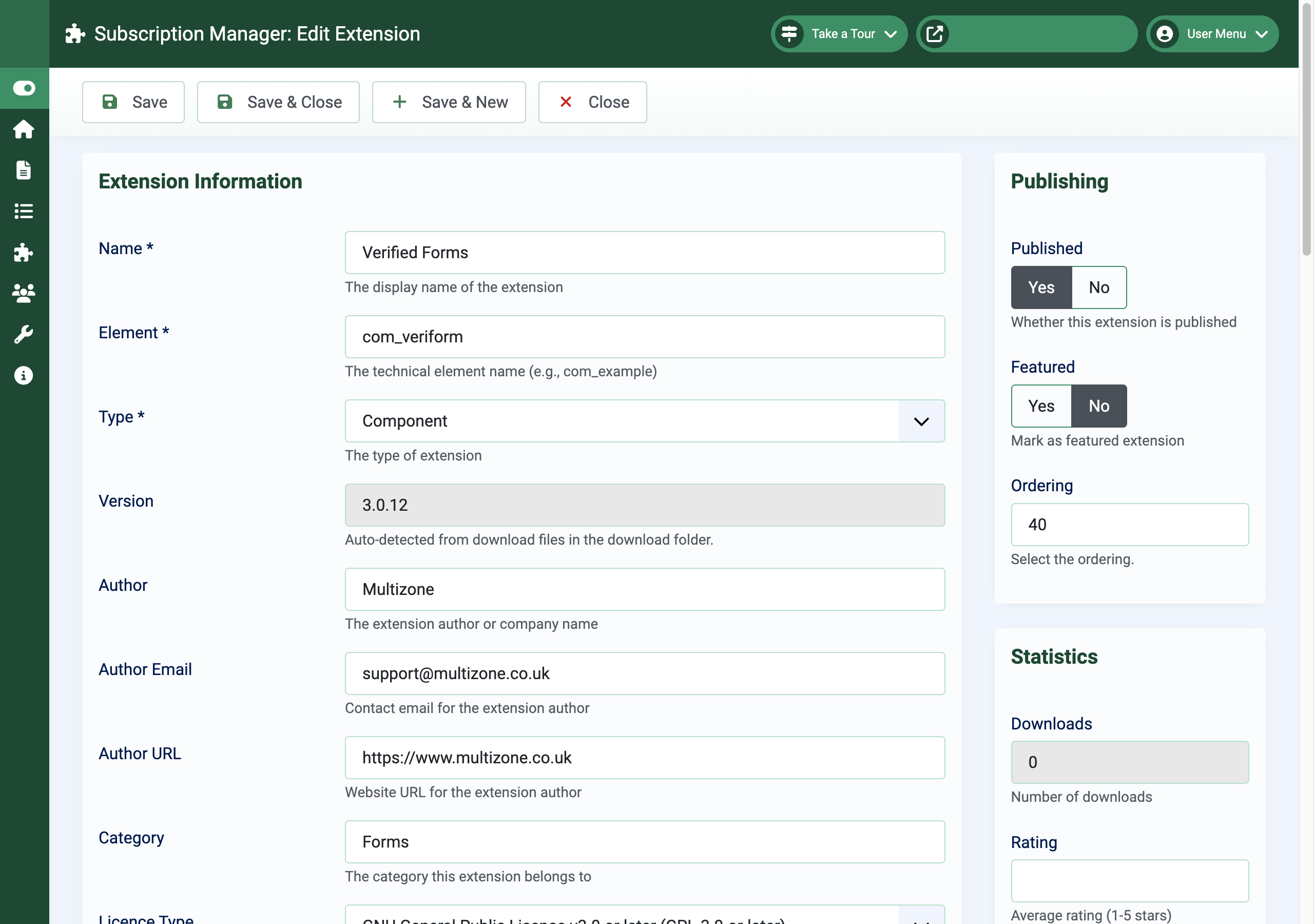
Add the extensions you want to manage to Subscription Manager. Navigate to Components > Subscription Manager > Extensions and click New to register each extension with its element name, version, and description.
A sample extension (com_example) is included to help you understand the setup process. You can use it as a reference when adding your own extensions.
Set Up Product Features
Define the feature limits for each of your extensions in Product Features. Product features control what each subscription tier unlocks — for example, maximum items, API call limits, or access to premium functionality.
It is your responsibility to ensure that your extension checks and respects the product feature settings for the user's subscription tier. Subscription Manager provides the limits; your extension must enforce them.
Create Subscription Keys
Start creating subscription keys for your users through the Subscription Keys interface. Each key is tied to a specific user, extension, and subscription tier.
A generic trial key is automatically created for each extension to reduce friction — users can download and try your extension immediately without needing a key.
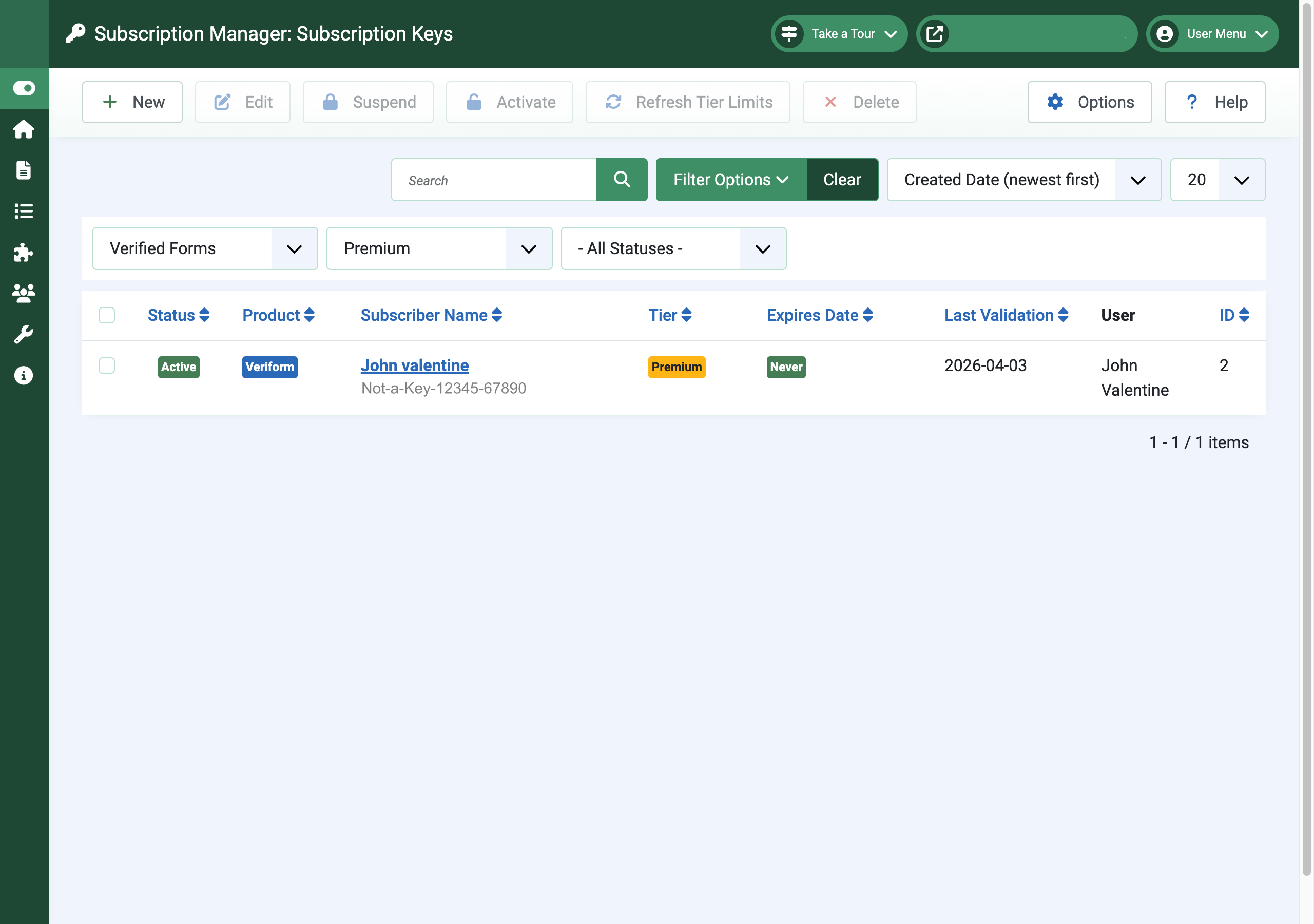
Your Subscriptions Manager Subscription
Subscription Manager itself is provided in the same way as the extensions it manages — with tiered access. It is freely available as a trial, and paid subscriptions unlock additional capabilities. Each tier builds on the previous one with additional features and higher limits.
Trial
- Up to 2 extensions
- Up to 10 keys
- 1 domain
- 50 downloads/month
- 30-day trial period
Standard
- Up to 5 extensions
- Up to 50 keys
- 1 domain
- 1,000 downloads/month
- Updates and support
Premium
- Up to 15 extensions
- Up to 200 keys
- 3 domains
- 10,000 downloads/month
- Custom branding & webhooks
Enterprise
- Unlimited extensions
- Unlimited keys
- Unlimited domains
- Unlimited downloads
- Full API & priority support
Feature Comparison
| Feature | Trial | Standard | Premium | Enterprise |
|---|---|---|---|---|
| Documentation | ✓ | ✓ | ✓ | ✓ |
| Email Notifications | ✓ | ✓ | ✓ | ✓ |
| Updates | ✓ | ✓ | ✓ | ✓ |
| Support | — | ✓ | ✓ | ✓ |
| Custom Branding | — | — | ✓ | ✓ |
| Analytics | — | Basic | Advanced | Advanced |
| Webhooks | — | — | ✓ | ✓ |
| API Access | — | — | ✓ | ✓ |
| Priority Support | — | — | — | ✓ |
Tier Limits
| Tier | Keys | Extensions | Domains | Monthly Downloads | Monthly Emails |
|---|---|---|---|---|---|
| Trial | 10 | 2 | 1 | 50 | 10 |
| Standard | 50 | 5 | 1 | 1,000 | 500 |
| Premium | 200 | 15 | 3 | 10,000 | 5,000 |
| Enterprise | Unlimited | Unlimited | Unlimited | Unlimited | Unlimited |
Managing Subscription Keys
Creating Keys
Subscription keys can be created manually through the admin interface or automatically through API integration. Each key is tied to a specific user, extension, and subscription tier.
To reduce friction for new users, a generic trial key with an expiry date is automatically created for each extension. This allows users to download and start using your extension immediately as a trial without any manual key setup.
Key Types
- Trial Keys — Time-limited keys for evaluation purposes. A generic trial key is created automatically for each extension so users can get started immediately.
- Standard Keys — Includes everything in the trial tier plus software updates and access to a support page.
- Premium Keys — Includes everything in Standard plus custom branding and webhook support.
- Enterprise Keys — Includes everything in Premium plus API access, usage analytics, and priority support.
Key Statuses
| Status | Description |
|---|---|
| Active | Key is operational. The user has access to features and updates for their subscription tier. |
| Suspended | Key is temporarily disabled. The user reverts to trial access until the key is reactivated. |
| Expired | Key has passed its expiration date. The user reverts to trial access. Can be renewed. |
Automatic Expiry
The system automatically checks for and expires keys that have passed their expiration date each time you visit the Keys view. You will see messages about any keys that have been expired and receive notifications about keys approaching expiry.
Toolbar Actions
- New — Create a new subscription key. Opens the key creation form where you can assign a user, select an extension, choose the tier, and set expiration dates.
- Edit — Edit the selected key(s). Modify details, notes, or expiry dates.
- Activate — Activate suspended or expired keys, restoring the user's subscription tier access.
- Suspend — Temporarily disable keys without deleting them.
- Delete — Permanently delete keys. This action cannot be undone.
Filtering and Search
Use the search and filter tools to find specific keys. You can search by key value, username, or email address, and filter by status, key type, or extension.
Security Best Practices
Important Security Recommendations
- Use HTTPS for all key validation requests
- Regularly review and audit active subscription keys
- Enable logging to monitor key usage
Subscription keys are security credentials — keep them private and do not share them with others. Each key is tied to your specific subscription and domain.
Key Security Features
- RSA-2048 Signatures — Subscription keys are cryptographically signed to prevent tampering
- Domain Binding — Keys can be bound to specific domains with auto-registration
- Expiration Tracking — Automatic expiry with configurable durations per tier
- Usage Monitoring — Track usage counts and last validation dates
Troubleshooting
Subscription Manager uses the standard Joomla update system. Updates are checked and installed through Extensions > Update in your Joomla administrator, just like any other extension.
For updates to work, your server must have an active internet connection to reach the Multizone update server. If updates are not appearing, check that your server's outbound HTTP connections are not blocked by a firewall or proxy, and that DNS resolution is working correctly.
Get support
Contact us
Questions, bug reports, feature requests — get in touch.
- Website: multizone.co.uk
- Email:
This email address is being protected from spambots. You need JavaScript enabled to view it. - In-app help: Each Multizone component has a checklist or explainer on its dashboard and help throughout the component.
What support covers
All Multizone extensions are freely downloadable as trials.
- Trial — community support via the documentation and changelog.
- Standard / Premium / Enterprise — direct email support; response priority scales with tier.
Documentation and changelogs for every extension can be found at multizone.co.uk/documentation.


